
Concepts
The following sections detail the concepts behind the design and operation of the Portal.
End to end processes
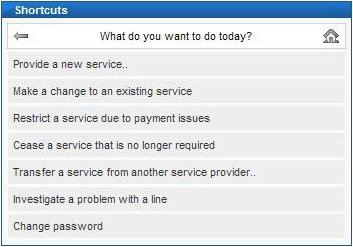
The Portal has been designed around a number of different processes. The user selects the process they wish to use from the list of Shortcuts in each section or the homepage, e.g. "Provide a new service" or "Make a change to an existing service". Each process has been built from end-to-end with the user experience at the forefront of the design.
When a user selects a process they will be prompted to answer questions or provide the required information to progress to the next stage. Each end-to-end process has been designed to only ask for information that is relevant at any stage, and upon supply of that information only valid options for progressing to the next stage will be displayed. By only displaying valid options and only allowing the user to enter valid information at each stage of a process the possibility of the request to Openreach being rejected is reduced to a minimum.
In order to further assist the user wherever possible plain English has been used to describe products, services, processes and options.
Dialogue Services and standalone usage
Dialogue services are the tools Openreach make available via WLR3 to allow CPs to query Openreach's back end systems to find out certain information - for example available line numbers at a particular exchange or the available line plant serving a particular premises.
Dialogue services cannot be used to place an order, however they are used in the various different provision and faults scenarios to aid the ordering or fault reporting process. Within the portal there are two ways of accessing dialogue services - firstly, when placing an order or raising a fault report, access to dialogue services is built into each end to end process and their actual use is largely invisible to the user (apart from when the results are shown on screen). The second method of accessing dialogue services is through their standalone implementation within the portal.
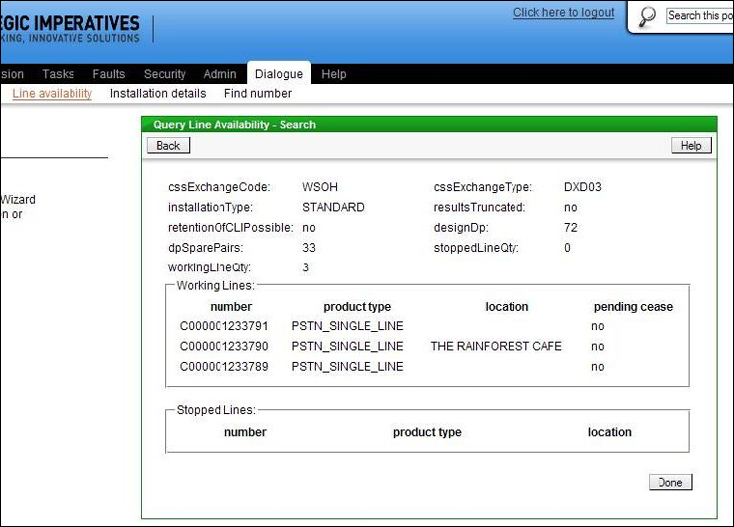
In most cases the user will access the dialogue services through one of the end to end processes, such as placing a new provide request, however there may be times where the user requires information in order to respond to a customer query without actually following an order process. For example a customer may ask "if I wanted a new line how long would it take?"; in order to respond in this instance the user may wish to use the "Query Line Availability" dialogue service to give the customer an idea of likely provision lead times at their premises e.g. if there is a stopped line available this could be restarted same day, if there were no stopped lines but there were spare pairs then the guidance would be "a few days", if there were no stopped lines or spare pairs then the customer could be informed that leadtime was unknown due to the requirement for Openreach to do additional work before the line can be installed. Example line plant availability results are below, these show the presence of spare pairs at the premises selected.
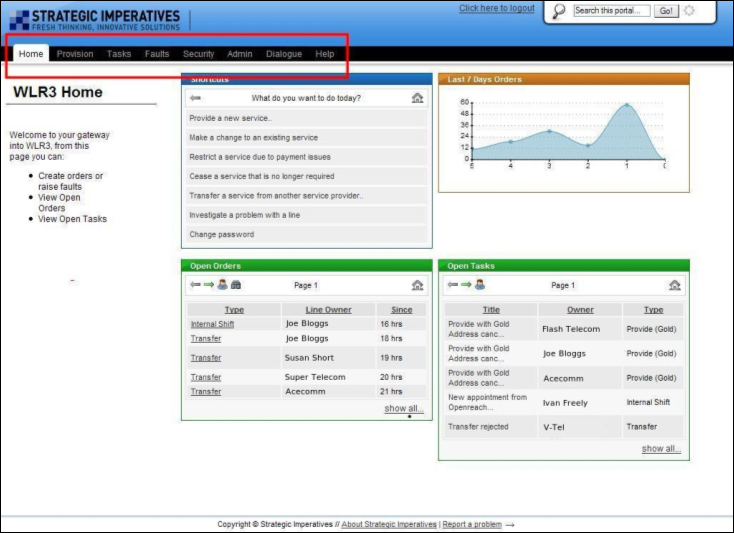
The Portal is divided up into sections which are all accessed via the main navigation bar. The navigation bar is displayed on every screen; below is an image of the homepage showing the navigation bar (highlighted inside the red box):
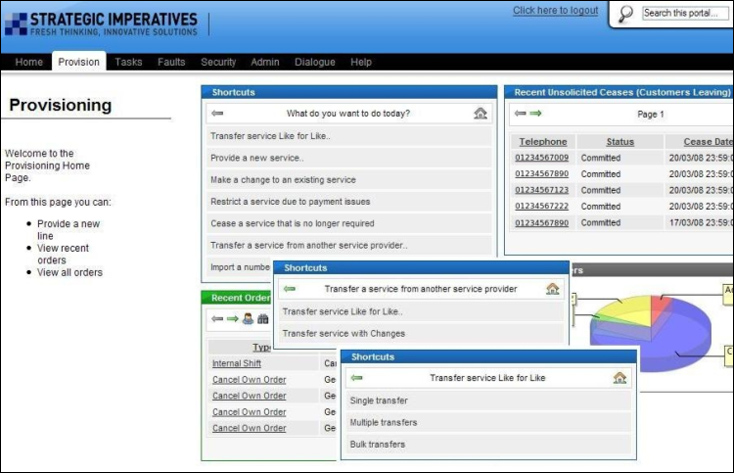
Within each section is a list of shortcuts that apply to that section; the list of shortcuts covers all available options in that section. Clicking on a shortcut may lead to a further list of more detailed options within that section. Below is an example showing the different shortcut screens that would be shown in sequence if the user clicked on "Transfer a service from another service provider" in the Provisioning screen and then clicked on "Transfer Service Like for Like" (subsequent shortcuts have been superimposed for ease of viewing):
Where the user requests to make a change to an existing line, then the next stage will be for the user to select the particular line in order that the Portal can present relevant options for that line type; shown below is the screen used to capture the details required to search the inventory for the line:
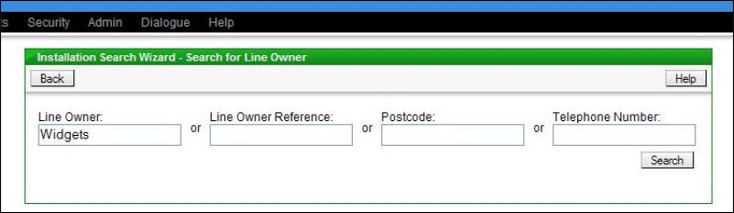
The inventory can be searched by entering a full or partial company name, full or partial reference (these are the references chosen previous by the users - see the inventory section for more detail), postcode or the full telephone number for the line.
The user is then able to pick the particular line from the results listed for which a change is required, see below.
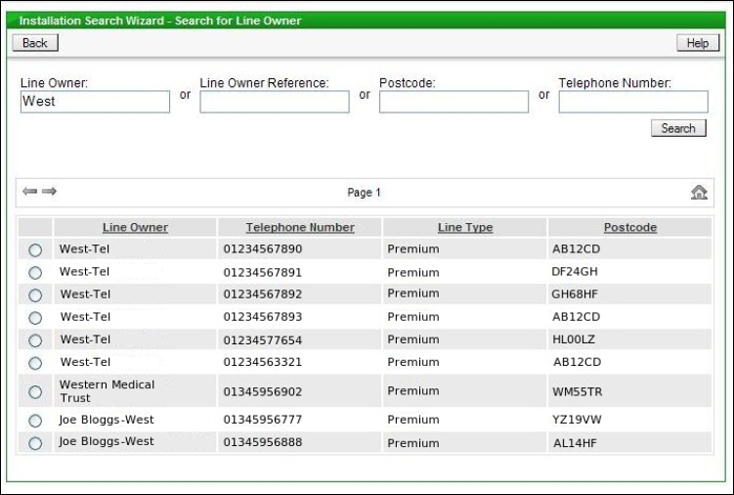
When the line has been selected then only the available shortcuts for that line type will be displayed.
Inventory overview
The Portal is underpinned by a full inventory of all lines currently managed by the CP. This offers several benefits:
- Line information can be provided even if Openreach's systems are offline
- The user is only shown options available for that line type - i.e. context based screens
- Company names can be stored to make searching for existing lines easier
- The need to re-key information is reduced as, where possible, it can be obtained from the inventory
- Facilitates the multiple reseller model
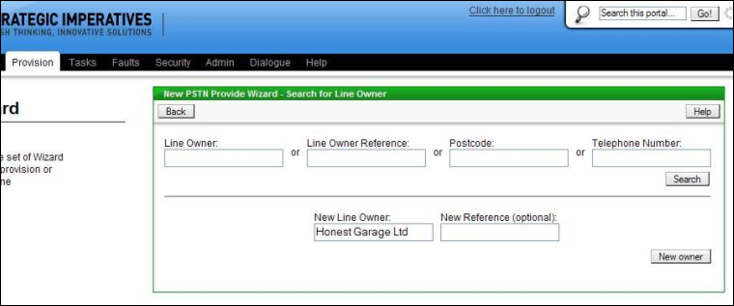
The use of company names in the inventory is purely an aid to the user. No other information specific to the line owner is stored and the data entered in the company name field is not validated in any way. By entering a company name when transferring a line or providing a new line the user is supplying information which can be used for searching at a later date. For example when requesting a new provide for a new customer the user can enter the company name, as shown below:
Then at a later date, when a change to an existing line is required, the user can search for all the lines that belong to that customer, as shown below:
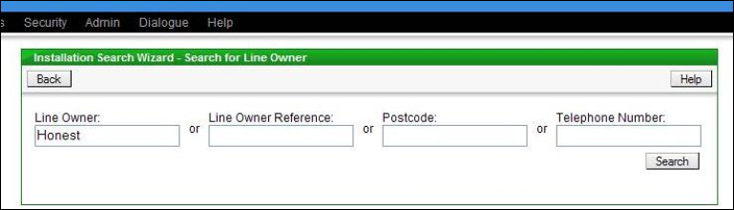
When searching partial words can be entered and all matching results will be displayed.
Minimum Lead Times
For every process there is a minimum leadtime defined by Openreach, which is the earliest timescale in which a product or feature can be provided. The portal has been designed to incorporate these rules into each process, so that the user cannot request a leadtime that is less than the minimum allowed.
A table of minimum leadtimes is included in the Appendix.
Directory Entry Management
The portal has been designed to support basic directory entry management, which is all that is currently supported on WLR3. Special Directory entries, such as bold text or out of area entries, are not supported within WLR3. If a customer requires a special directory entry for a line then this can be requested by contacting the BT Directories Team on 0800 833400.
The directory entry screen has been designed to be intuitive for the user to use - the different directory entry options and styles are explained in plain English and the relevant data capture boxes are displayed, dependent on the entry style the user chooses, see below:
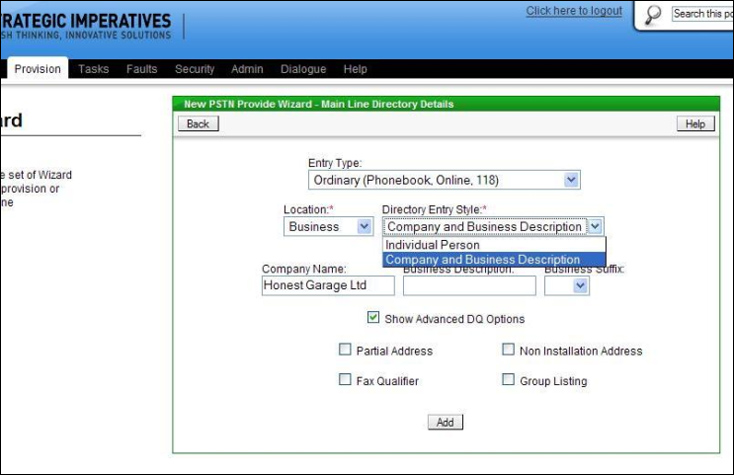
There are also some advanced directory entry options which are available for Business Directory entries - these can be selected as required, but the details cannot be specified (this is limitation of WLR3). If you request one of these advanced options then BT Directories will contact the End User on your behalf to capture the exact requirements.
Carrier Pre-Selection (CPS)
CPS is managed via a separate system to Wholesale Line Rental, so the two must be ordered separately - as has been the case with Wholesale Line Rental before WLR3.
Currently the Portal does not incorporate the capture of separate CPS requests, so these must be submitted separately to your CPSO, should you require CPS.
For new provides and transfers CPS requests can be submitted at any time after the order has "Committed" status and a date has been given. If the CPS request is submitted after the order has "Committed" status and before the line is installed or transfers then the CPS will usually be activated within 30 minutes of the line install or transfer being completed. If CPS is submitted after a line has been installed or transferred then CPS is usually activated within 30 minutes of the request.
Where a line is being transferred there is a "CPS Retain" option - this should only be selected if the line is being transferred from BT Retail and the CP is the current supplier of CPS on the line. In all other scenarios use of "CPS Retain" will result in the wrong Retailer ID (RID) being associated with the CPS or the calls continuing to be charged by the previous supplier.
Order stages
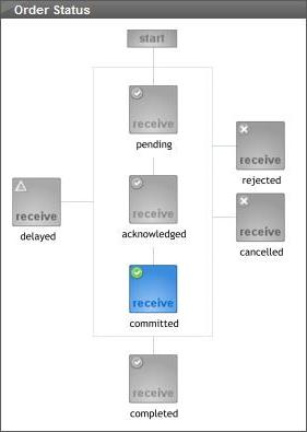
Once an order has been placed then the user can track its progress through to completion. There are several stages which an order can pass through and these are defined by Openreach. A typical successful order will pass through the following stages:
| Pending - | The order has been received by Openreach |
| Acknowledged - | The order is being acted upon by Openreach |
| Committed - | The order has been processed and the completion date is given |
| Completed - | The order has been completed |
Some orders may also pass through a "Semi-Complete" stage, between "Committed" and "Completed" which indicates that one or more activities are slightly delayed, but the bulk of the work is complete - for instance the retention of CPS can occur a short time after a line transfer and this would generate a "Semi-Complete" status.
Some provision orders may be subject to delays - for example a new provide where there is insufficient line plant - in this case the order will move to a "Delayed" status and information as to the nature of the delay will be provided.
If the request to Openreach cannot be processed due to requesting something that is not possible then Openreach will reject this up front - though possibility of this is minimal due to the design of the Portal.
It is possible for an order to be rejected at a later date, but this only occurs in certain scenarios (e.g. if an Excess Construction Charge banding is insufficient and the CP does not respond with higher banding within 30 days).
The order may also be cancelled. In the case of a line transfer both the gaining or losing party has the facility to cancel the order (the losing party can cancel when a case of misselling has been identified), for other order types the user can cancel the order as long as it has not been completed or has not passed the "Point of No Return".
Every order entered via the Portal is tracked and the status can be determined at any time. For each order a pictorial representation of the current status is given, see below:
Number selection charges
One of the benefits of WLR3 is the ability to select the line number when requesting a new line or renumbering an existing line. There are two options for selecting a number, these are:
- Use next available number
- Pick a number from a list of available numbers
Where the user picks a number from the list of available numbers and then completes an order with the chosen number then a charge is applied by Openreach. Users should consider this when placing orders so as to avoid unnecessary cost.
Incompatible Features
There are a variety of Calling and Network Features that Openreach offers for use with a line to provide additional functionality with a line. It is possible for several features to be supplied on the line at the same time. There are, however, some combinations of features which don't work together.
The Portal has been designed so that a user cannot request a combination of features which will not work together on a line, or that would be pointless to use at the same time (e.g. incoming call barring and caller display).
Some features are related (such as different call diversion features) and these are grouped together into drop down boxes, so only one can exist on a line at any one time.
| Main Navigation |