
Cancelling you own Order
In flight orders can be cancelled up to the "Point of No Return" or "PONR".
Details of different order scenarios and the associated PONR are shown in the table below:
| Scenario | Can be Cancelled? | Point of No Return | Other Notes |
| Transfer | Yes | 4pm day before transfer | |
| New Provide | Yes | 4pm day before for restart, up to when engineer downloads install job for appointed installs | The engineer would usually download the install job on the required date |
| Conversion | Yes | 4pm day before where no appointment, up to when engineer downloads install job for appointed conversions | The engineer would usually download the conversion job on the required date |
| Change Line Location | Yes | 4pm day before where no appointment (i.e. restart), up to when engineer downloads install job for appointed moves | The engineer would usually download the move line job on the required date |
| Cease | Yes | 4pm day before cease | Same day ceases cannot be cancelled |
| Change Features | Yes | 4pm day before change | Same day changes cannot be cancelled |
| Change Care Level | Yes | 4pm day before change | Same day changes cannot be cancelled |
| Change Directory Entry | No | N/A | Submit another request of the opposite type |
| Add Lines (Multiline) | Yes | Up to when engineer downloads install job | The engineer would usually download the install job on the required date |
| Remove Lines (Multiline) | Yes | 4pm day before change | |
| Restrict Service Due to Payment Issues | No | N/A | Submit another request of the opposite type |
| Change Number | Yes | 4pm day before change | Same day changes cannot be cancelled |
| Change Line Properties | Yes | Up to when engineer downloads install job | The engineer would usually download the install job on the required date |
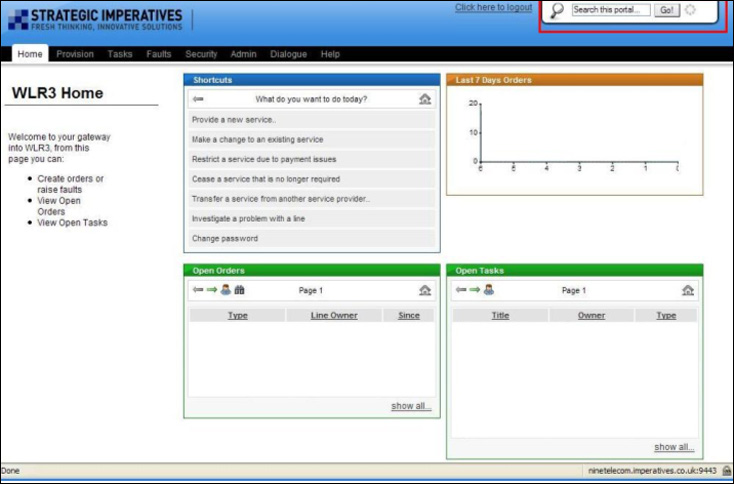
To find an order use the search facility built in to the Portal - this is in the top right hand corner of the screen, see below (highlighted in the red box):
The search can be done with the line number or company name (or part company name), for example:

All matching results are then displayed on screen:
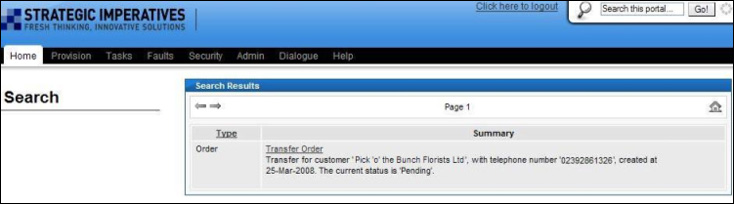
This will show all matching orders or installations (as indicated by the "Type" column); to view the order click on the link to it in the "Summary" field, this will display the order details and a list of shortcuts applicable to the order, for example:
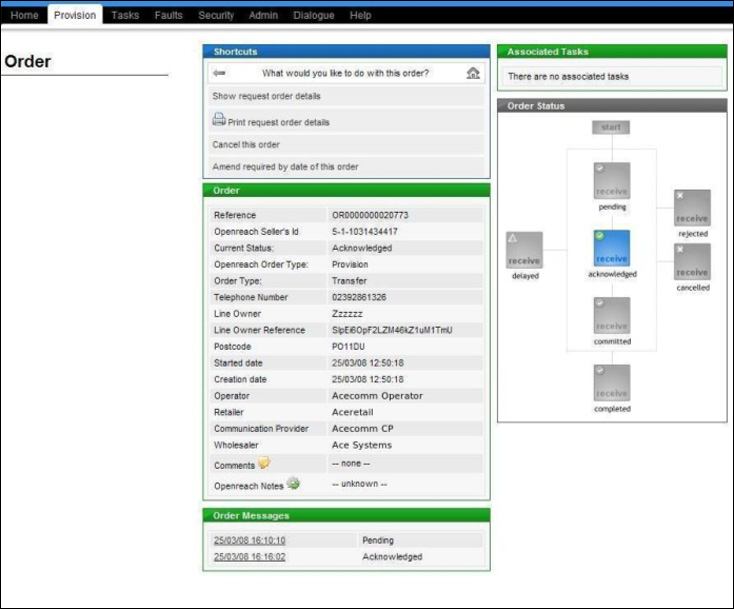
This screen also shows the current order status - it is important to note that an order can only be cancelled if the current status is either "Acknowledged" or "Committed" (as well as being before the PONR).
To cancel the order select "Cancel this order" from the list of shortcuts.
The next screen prompts for the reason for the cancellation to be entered, this is picked from a drop down list, see below:
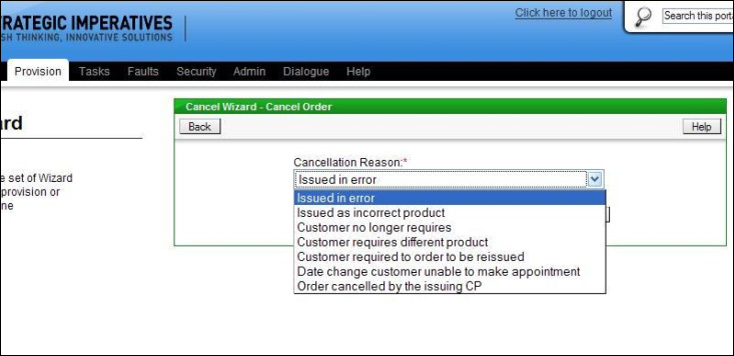
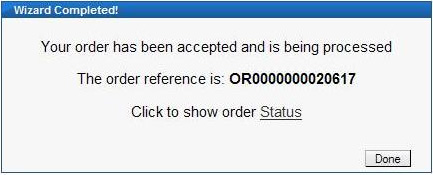
Once the "Submit" button is clicked the cancellation request is sent to Openreach, this will be confirmed on screen.
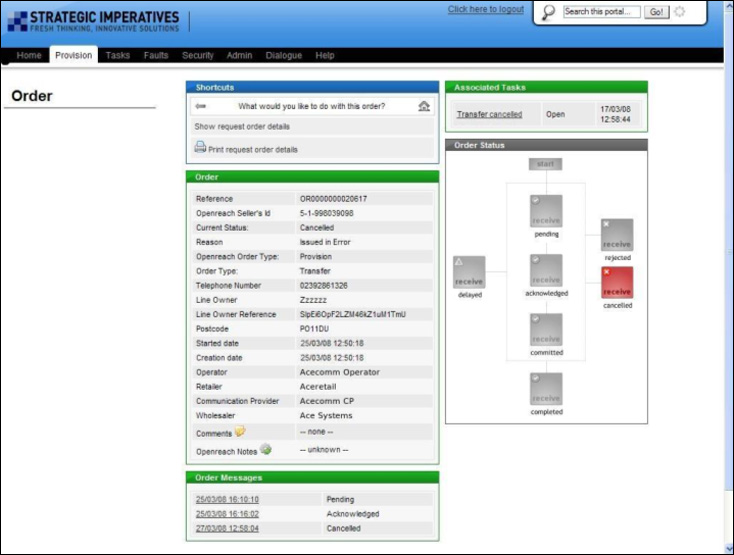
When the order has been cancelled the order status is updated to reflect this, see below:
| Previous subject | Main Navigation | Next subject |